

What's new in AssetLoom Studio: one layout, safer saving and street rows
Studio now has one layout for Build and Animate, a home page with drafts that are never lost, safer saving, street rows and optional Workspace Plus.
By AssetLoom Team, published , 5 min read

Since our last Studio update at the end of October, most of the work has gone into making Studio calmer and safer to use: one layout for Build and Animate, a home page for everything you have made, drafts that are never lost, and saving that keeps your work even when something goes wrong. Streets got a new way to place whole rows of trees and lamps, and there is now an optional way to get more room for your saved work. Here is what changed and how to use it.
One layout for Build and Animate
Build and Animate now share the same layout, so once you know one you know the other:
- Left: the built-in tools for the thing you are making, such as presets, the street map or colours.
- Centre: the 3D view, which panels no longer cover.
- Right: the things you can add, such as street pieces, parts or clips, with a search box.
- Far right: Details for whatever you picked.
Panels fold away when you need more room for the view and have fixed sizes with wide and tall toggles. The Shop opens as a dialog over your work rather than taking you away from it. On tablets, Studio now uses its phone layout.
Both tools also have Undo and Redo in the action bar, with Ctrl+Z or ⌘Z. In Build, an Activity list made from your undo history shows the steps you have taken. In Animate, undo covers the character, its look, the clips and their order, and props.

A home page for everything you make
Opening Build or Animate now lands on its home page. At the top, Continue where you left off lists your unsaved drafts with Open draft and Discard. Below that, Start new shows the Starters you own, and then your saved builds, which you can search, filter by Starter, and select to delete several at once. Recent exports are listed with how long each download stays ready.
Drafts are kept for you automatically. Each tool keeps your newest 5 unsaved drafts on its home page; older ones move to Archived drafts instead of being thrown away, so a draft is never lost because you started something new.
Saving you can rely on
Several changes make it much harder to lose work:
- Leaving asks once. If you go to leave unsaved work, Studio asks one question: Save, Leave without saving, or Cancel.
- Switching saves. Moving from one thing to another saves your changes on the way, and the Unsaved changes note says when that will happen. If you would rather be asked first, turn on Ask before switching on the home page.
- Short outages keep your work. If AssetLoom is briefly unreachable, Studio keeps you signed in and keeps your work on screen. A save that fails offers Try again instead of losing the editor.
- Update notice. When a new version of AssetLoom goes live while you have a page open, a notice offers Reload or Later. Work saved with a newer version says so plainly instead of showing an error.
Street rows in Build
Lining a street with trees or lamps used to mean placing each one by hand. The Town Street builder can now place a whole row of one piece at once: tick Place a row, pick a tree, lamp or bollard, type the spacing, and drag the ends of the row. A live preview shows where every piece will go, and the row keeps clear of zebra crossings and bus stops on its own.
A row counts as one piece toward the street's limit. A street holds 80 placed pieces and 120 pieces of ground cover for free, and both rise with Workspace Plus (below), up to 320 and 480. The street map on the left shows how many you have used.
Guide · Game assets
Build a street in AssetLoom StudioLay out roads, pavements and street furniture in the browser with the Town Street Starter, place pieces by hand, draw road networks, then export.
Workspace limits and Workspace Plus
Saving in Studio is free, and every account has room for plenty of work: 200 buildings, 100 props and 64 MB of storage, among other limits. The home page shows how much of your workspace you have used.
If you need more, Workspace Plus costs 150 credits, is yours to keep, and adds the free limits again, so the first level doubles your space. Levels can also be earned: you get one when the credits you have spent on AssetLoom in total reach 1,000, another at 3,000 and a third at 10,000 (top-ups don't count as spending). Earned and bought levels together go up to 3, so at most four times the free space. Workspace Plus is optional; previewing and saving within the free limits cost nothing.
Exports carry real collision shapes
A Studio export costs 200 credits, and exporting the same build again is free. Exports now include each part's real collision shapes, set up for each engine, so a house, a street piece or a car arrives with collision that follows its actual parts. Credits now show live in the Studio bar, and your wallet shows how many credits you have used this month.
Loom Avatars: a mouth expression fix
The free Loom Avatars Starters have new versions, 1.5.2 (Feminine) and 1.6.2 (Masculine), with a fix to the mouth expressions.
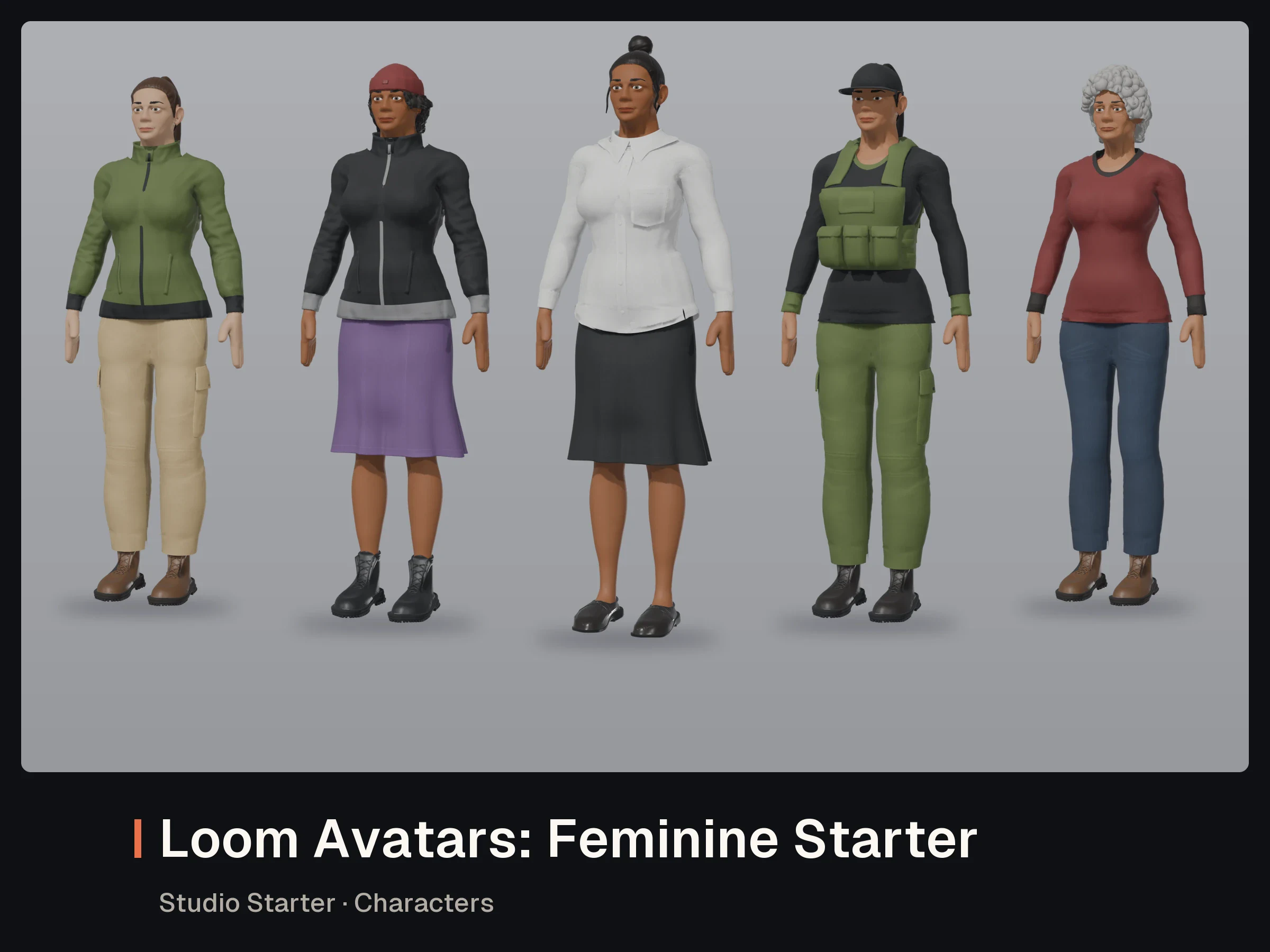

- Interactive 3D preview
Loom Avatars: Feminine Starter
GLB · JSON · WEBP · TXT
- 4
What this means for you
- If you tried Studio in October, open it again: the layout is the same in both tools, and your work is on the home page.
- You can leave a build half-finished. Drafts are kept, and nothing is thrown away when you start something new.
- Dressing a street for your game is much faster: one row instead of dozens of single pieces.
- Your exports come with collision shapes already set up for your engine.
New to Studio? Start with the free Loom Avatars Starters and the getting started guide. New accounts get 200 welcome credits, enough for one Studio export. Open Studio.
Spotted a mistake or have a question? Email support@assetloom.io.
More from the blog
All posts
AI & industry
Unreal Engine 5.9 Preview puts AI agents in the editor: what game developers should know
Epic's Unreal Engine 5.9 MegaJam Preview adds editor AI agents, Unreal Canvas for generated meshes and AI animation. What shipped and what to check.
, 6 min read
Behind the build
How we make animation clips that chain, loop and keep hands on the body
One shared idle, Start/Loop/End clips and hands that stay on the skin: how we build humanoid clip packs with no pops at the seams, and what you can reuse.
, 7 min read

AI & industry
Half of October's new Steam games disclosed AI content: what Steam asks and how to be ready
49.9% of October 2026's new Steam games disclosed AI content. What Steam's AI disclosure asks, what Valve said, and how to keep a provenance record.
, 6 min read